

 MCP
Choose connectors for a chat
In the chat box, click + and open Connectors.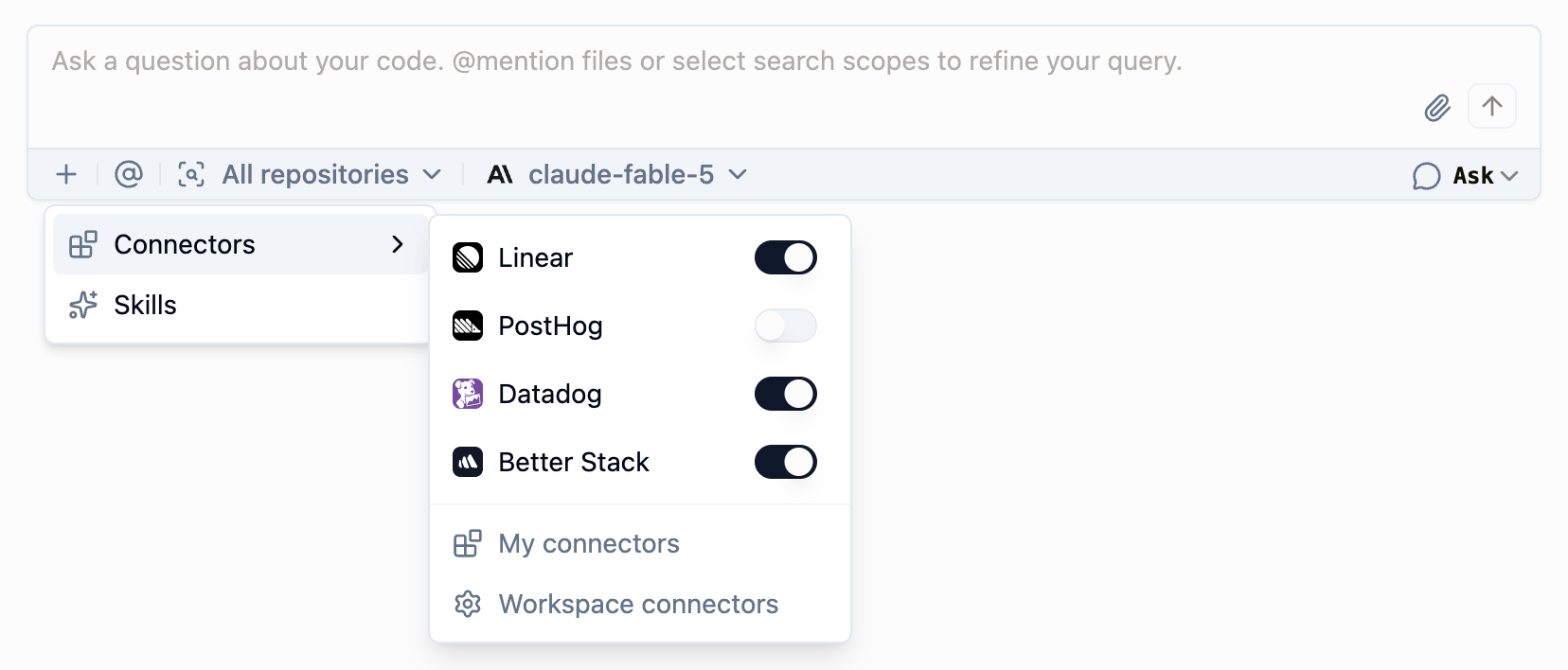
- Turn a connector on or off. Ask Sourcebot only uses the connectors that are on. Your choice carries over to new chats in this browser.
- Connect a connector. Click one you haven’t connected yet to sign in to it. Sourcebot keeps your message, and brings you back to the chat when you’re done.
- Manage your connectors. My connectors opens Settings → Account → Connectors. Owners also see Workspace connectors, where they add connectors.
Next steps
Connect a connector
Connect your accounts in Settings.

MCP clients
Use connectors from Claude Code, Cursor, and other MCP clients.