

 MCP
Only owners can set up new connectors. If you’re a member and need a connector that isn’t available, ask an owner to add it.
Add a connector
- Go to Settings → Workspace → Connectors and click Add connector.
- Pick a supported connector, or add a custom connector.
- If the connector needs a pre-registered OAuth app, enter its client credentials. See Connectors that need an OAuth app.
- Review the connector’s settings, then click Add.
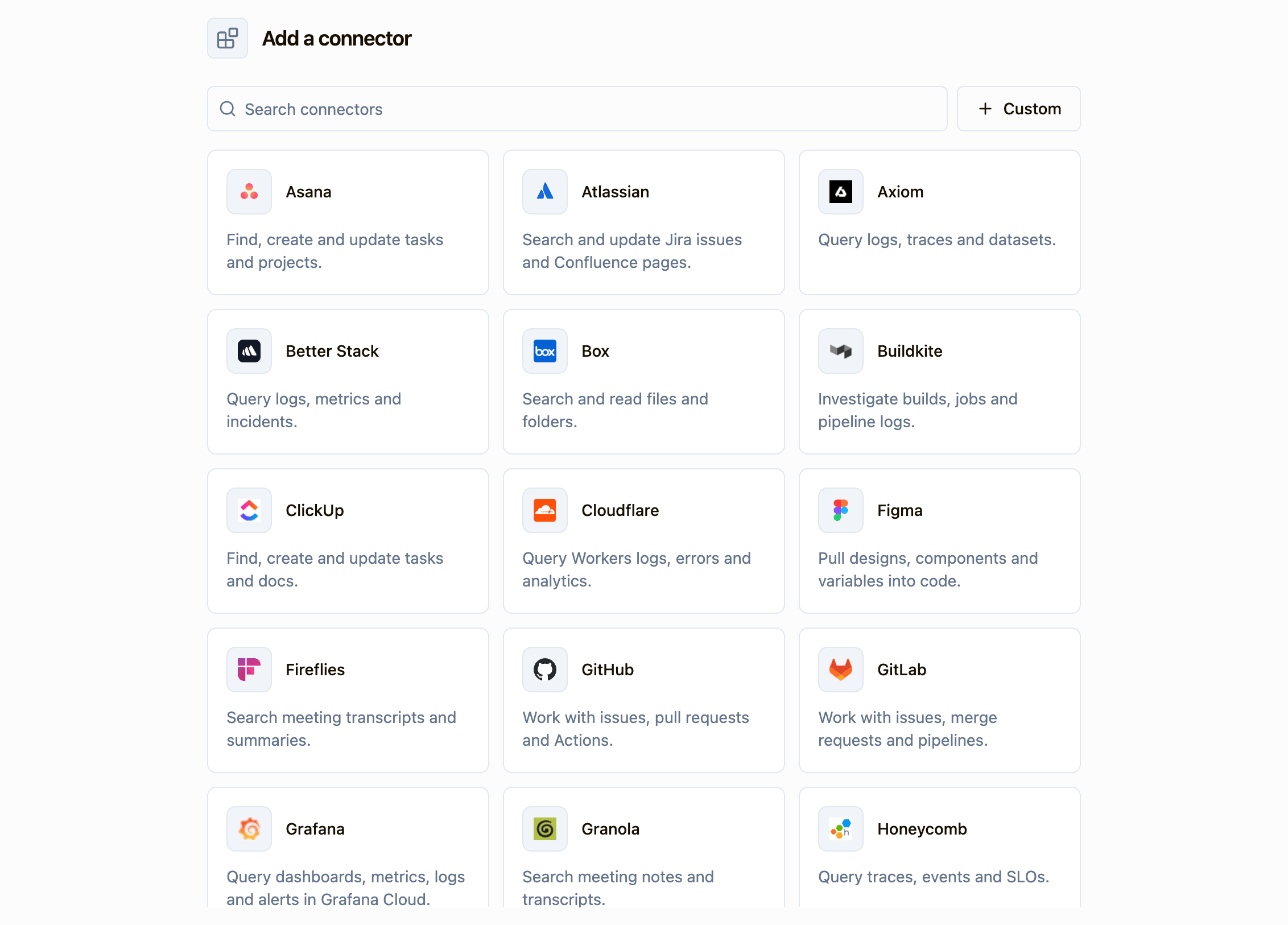
Custom connectors
A custom connector lets you connect any remote MCP server, not just the supported connectors. Use one for an internal MCP server your team runs, or for a third-party server that Sourcebot doesn’t include yet. Members connect to it and use its tools the same way as any other connector. To add one, click Custom connector in the Add connector dialog and enter:- Name: the name members see. It needs at least 3 letters or numbers and must differ from your other connectors’ names.
- Connector URL: the server’s HTTPS URL, for example
https://mcp.example.com/mcp.
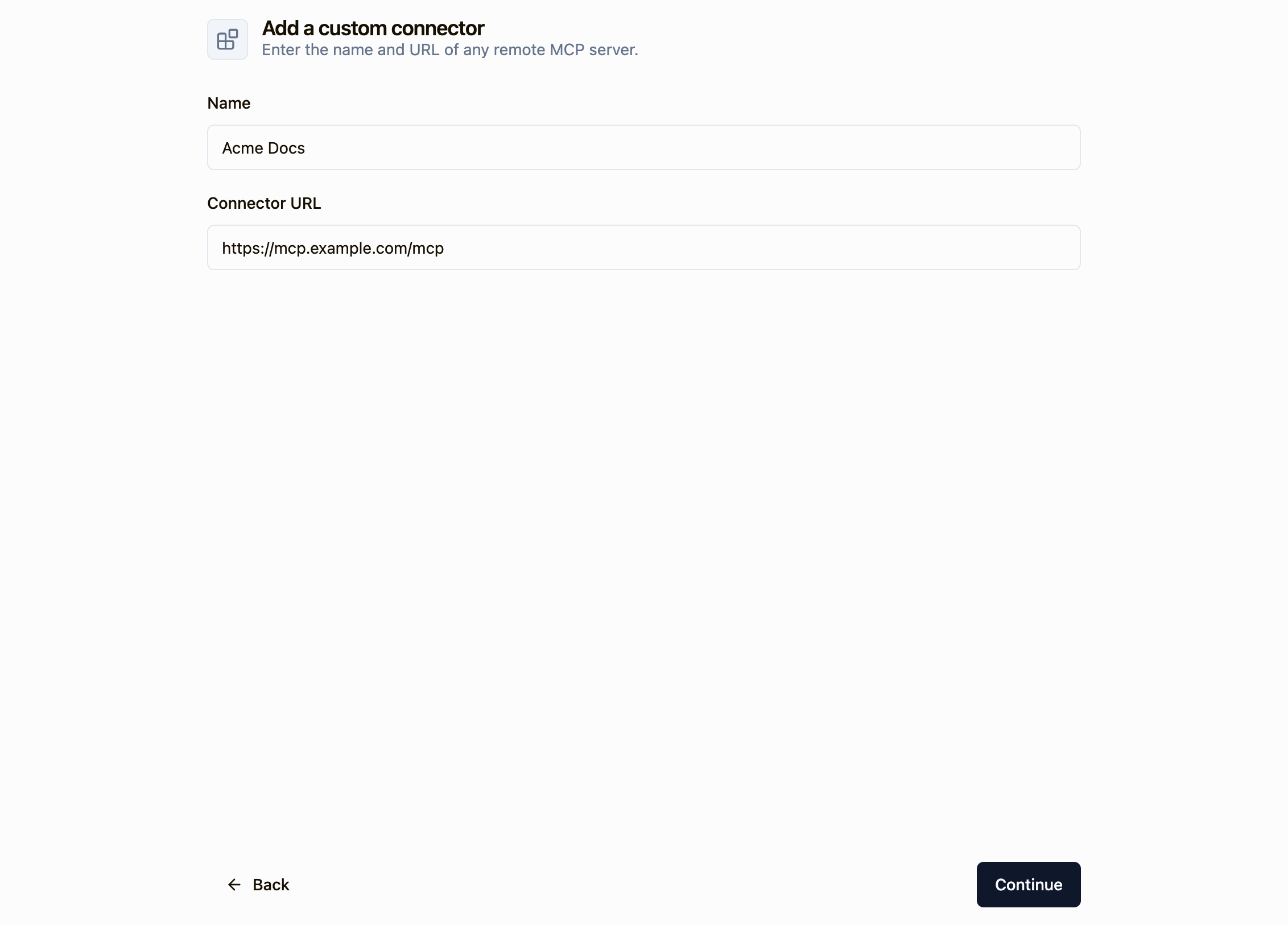
- Use the MCP Streamable HTTP transport.
- Support OAuth, since each member signs in with their own account. If it doesn’t support dynamic client registration, you also need an OAuth app.
Connectors that need an OAuth app
Most connectors support dynamic client registration, so Sourcebot registers with them automatically. Some, such as Slack, need an OAuth app that you create in the service first:- Create an OAuth app in the service. Set its redirect URL to the Redirect URL Sourcebot shows.
- Enter the app’s Client ID and Client Secret, then click Continue.
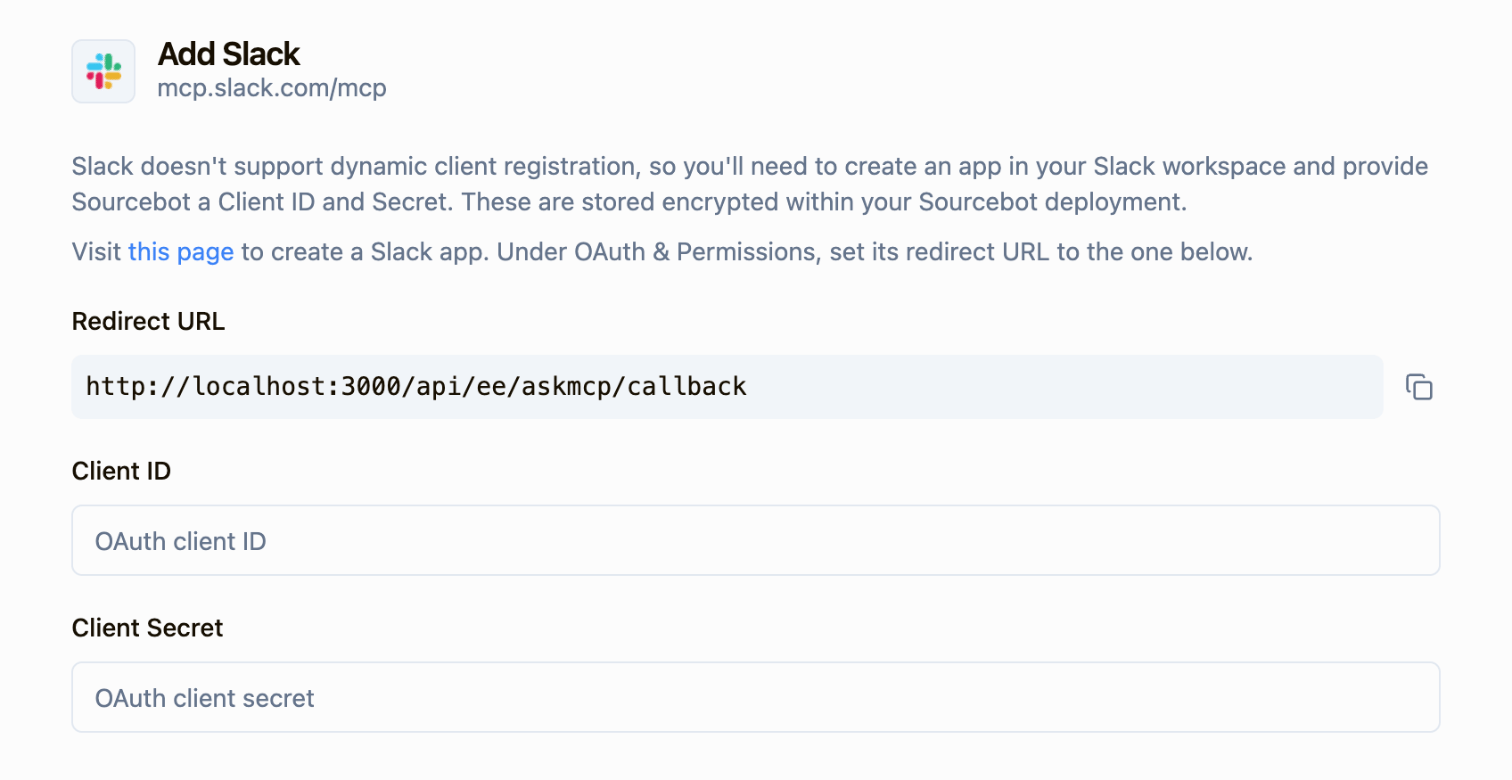
OAuth scopes
OAuth scopes control what members authorize when they connect. Sourcebot lists the scopes the connector advertises and selects the ones it asks for by default. You can change the selection or add custom scopes. Most services grant only the scopes you request, so include the scopes the connector’s tools need. To change scopes later, open the connector’s menu in Settings → Workspace → Connectors and select Edit OAuth scopes.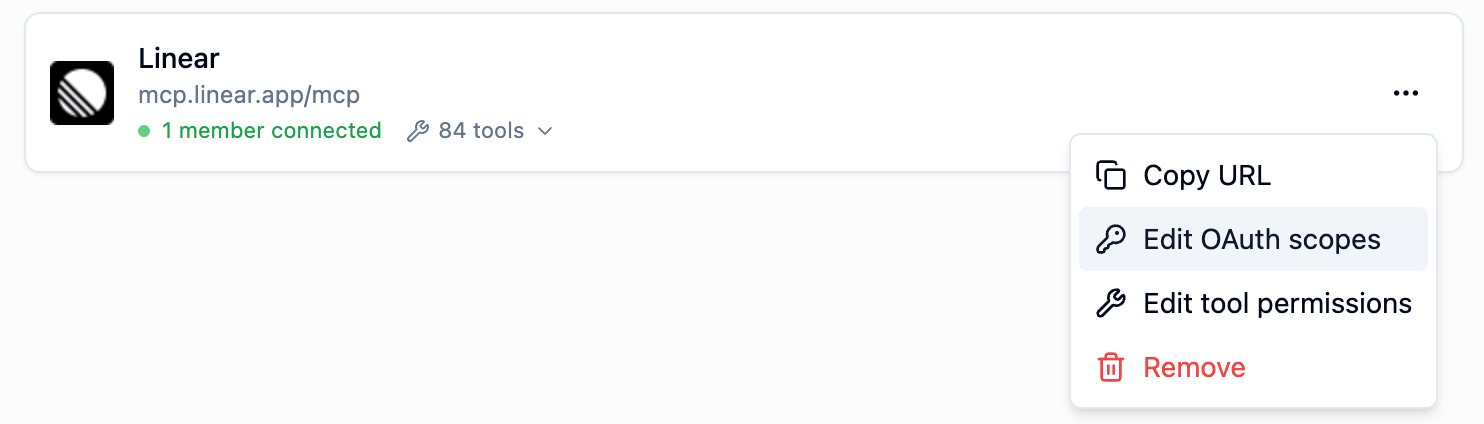
Next steps
Tool permissions
Choose which of the connector’s tools agents can use.
Connect a connector
Share with members how they connect their own accounts.
Ask Sourcebot
Use connectors in your chats.

MCP clients
Use connectors from Claude Code, Cursor, and other MCP clients.